The Knowbility Accessibility Internet Rally (AIR) is a one-day web site development competition that provides web professionals with the opportunity to learn accessibility skills from recognized experts. After a free, accessibility training session (a value of hundreds of dollars), web developers test their newly acquired design tools and techniques in the context of one rollicking, high energy work day. Each team creates a site for a local non-profit organization and prizes and wide recognition are awarded to winners in three categories.
Advanced Developer Training 2003
This advanced developer training is provided as a supplemental course for AIR participants. It is expected that all attendees have attended the prerequisite “Accessibility Basics” course. It is also assumed that all attendees have at least a basic understanding of web development and HTML.
Instructors
- Jim Allan
James Allan is the webmaster at the Texas School for the Blind and Visually Impaired. He has worked in the field of assistive technology and accessible information access for over 20 years. James Allan received a Distinguished Service Award from the City of Austin’s Mayor’s Committee on People with Disabilities for his work on the advisory board of AIR Austin, an annual event in which teams of professional web developers and nonprofit organizations compete to produce web sites that are accessible to people with disabilities.
James Allan is a contributor to the World Wide Web Consortium’s Web Accessibility Initiative (W3C - WAI). James Allan is an active participant in the User Agent working group. Previously, he served on the Authoring Tools and Education and Outreach working groups. James Allan is the chair of the Research and Development working group of AFB’s Textbooks and Instructional Materials Solutions Forum, a national effort directed at getting usable textbooks in students hands in a timely manner. James Allan, chaired the Texas Education Agency Computer Network Study Project - Accessibility Subcommittee, which produced a comprehensive guide for accessible multimedia and Internet textbook design and delivery. As webmaster, James Allan is committed to accessible web page design and the development of accessible multimedia textbooks, learning materials, and assessments for use by all students.
- Rob Sartin
Rob Sartin is Knowbility’s former Technology Specialist and presented Extreme Accessibility at the Java One Conference in June. He developed training for AIR-University on accessible JavaScript and Accessible Web templates.
- James Craig
James Craig is a graphic designer, web developer, and multimedia enthusiast currently living in Austin, Texas. During normal work hours, he holds a Design Technologist position at frog design. He is the Web Communications Director for the Austin Chapter of the American Institute of Graphic Artists (AIGA) and sometimes blogs on his personal site, cookiecrook.com. James is a proponent of web standards and accessibility-conscious web media.
- Mike Moore
Mike Moore is Knowbility’s webmaster and resident technical guru. He previously taught Accessibility 101 for various AIR events.
Permanent link to this training material: http://cookiecrook.com/AIR/2003/train/
- Accessibility refreshers
This section briefly discusses material from the AIR-Austin “Accessibility Basics” course and serves as a refresher for previous AIR participants. There are several topics covered in this section:
- web accessibility challenges faced by people with disabilities,
- text alternatives,
- creating a logical tab order with
tabindex,
accesskey or other navigation methods,
- form accessibility,
- data table accessibility, and
- laws and standards for web accessibility.
- Importance of valid code and semantic markup
This section discusses the benefits of markup and CSS validation, and tools for partial accessibility validation. Beware that while HTML and CSS validation require only scripts, accessibility validation requires extensive human analysis (The “Bobby Approved” graphic does not mean accessible. It means, “The script couldn’t find any errors, but keep looking.”).
This section also discusses semantics and metadata, and how using semantic markup can benefit you and your site’s audience.
- Cascading Style Sheets
This section discusses the basics of CSS, benefits of CSS, and how to use CSS in an accessible way. CSS resources, examples, and a demonstration of User Style Sheets are also provided.
- JavaScript/ECMAScript
This section discusses the ability to provide rich usability benefits to a majority of your audience without negatively affecting the accessibility of your site to the disabled minority. This material dismisses the myth that accessible means “a separate plain-text site” and demonstrates how most common uses for JavaScript can be executed in an accessible manner.
- Accessibility testing
This section discusses quality assurance techniques to ensure your site is accessible to as wide an audience as possible. DHTML requires additional accessibility testing, so several testing techniques are covered. The term, DHTML, simply refers to the creative combination of HTML, CSS, and JavaScript.
- Flash MX
This section briefly discusses the new accessibility features of Flash MX and how to overcome accessibiity challenges while providing a rich user experience.
- Audio/video
This section discusses how to make other forms of media accessible: captioning video, descriptive audio tracks, etc.
- Conclusion
This sections concludes the course with a compiled list of resources, contact information for the instructors, and time for questions.
The following challenges are faced by groups historically overlooked in quality assurance for web sites. Steps taken to ensure access to these groups can provide benefits for everyone. Sharron Rush refers to these benefits as virtual curbcuts.
Physical Disabilities
- Blind and low-vision
Most web accessibility concerns aim to support this group of users. The internet is is too-often thought of as a purely visual experience, rather than the open exchange of information it should be. Blind or low-vision users may use a screen reader, large fonts, screen magnifier, or other Assistive Technolgy (AT) devices to access the internet.
- Mobility-impaired
Many web users are unable or prefer not to use a typical pointing device like a mouse. When developing sites, make sure your interface can be used with other input devices like a keyboard.
- Hearing-impaired
While most web sites don’t provide audio content, take special care in considering this group if your web site does. Provide video captions or transcripts of your essential audio content.
- Color-blind
When using color on web sites, do not rely on color alone and provide sufficient contrast between background and foreground colors. For example, do not use the phrase, “Select green for yes and red for no.”
- Learning-impaired
Disablities in this group can vary and include disorders such as dyslexia or attention deficits all the way to severe mental retardation. By using all accessibility techniques possible, you’ll make your site a more usable and accessible experience for all, including this group.
Also use proper grammar, spell correctly, and use the clearest and simplest language appropriate for a site’s content.
Technical Disabilities
- Different user settings
It’s best to test the default install settings of many browsers, but even the most inexperienced web surfers change their settings a little. Test with as many combinations of settings as possible.
- Disabled user settings
Some user may surf with JavaScript turned off, some may have cookies disabled, some may have a browser incapable of using style sheets or they may have disabled them. All of these setting differences can affect your user’s experience for better or worse.
Anyone who tells you that this isn’t an issue
either isn’t checking their server logs or isn’t getting any traffic. Perhaps they aren’t getting traffic because they aren’t paying attention to their users’ other needs either.
- Missing typefaces
Test all your specified fonts and provide a default generic font-family as sans-serif, serif, or monospace.
h1 { font-family: garamond, times, serif; }
- User styles
User style sheets can override all or a portion of your styles. You can’t test for everything, but try to test out different user style settings, like large fonts or high-contrast color settings.
- Slow internet connection or old computer
Just because your graphics-heavy, richly-interactive web site renders quickly on your new Mac G5 with your high-speed internet connection, doesn’t mean it will render the same way on Joe Average’s 486 with AOL dialup. Keep bandwidth and processor limitations in mind.
- Text-only browsers or disabled images
Believe it or not, some people still use text-only browsers (like Lynx) and many more people surf with images disabled for bandwidth savings. Arrange you document content in a way that makes sense from a linear perspective and provide text alternatives.
- Limited newer browser
Many PDAs and mobile phones contain limited browsers with limited bandwidth. Provide for these users by serving your site as light, semantic markup with an available style sheet for handheld media.
HTML Accessibility Basics Refreshers
The following is a list of some of the technical (HTML) accessibility options discussed in the AIR “Accessibility Basics” course.
- Text alternatives
alt
Provide short descriptive text on all images. Keep the text limited to essential information, but make sure it provides all necessary information. For example, an image link to the Kumquats page should probably contain “About Kumquats” as the alternative text rather than just “About” or even worse, “About Kumquats; red text on a blue backgound with an icon of a Kumquat.” Note: If the entire site is about kumquats, the text “About” may be sufficient.
Spacer images, slices, and non-essential decorative images, if used, should contain and empty value: alt="". Note: We recommend using CSS for style and layout, rather than using non-semantic spacer images and junk markup.
longdesc
Images requiring long text descriptions, such as charts or graphs, should contain a longdesc attribute where the value is a URL to a full text description of the image. The external resources should be plain text or HTML.
- ‘D’ link
Because longdesc is not fully supported in modern browsers and screen readers, it is common practice to include a link (with ‘D’ as the link text) to the external description resource immediately following the image. Note: A ‘D’ link is not necessary on regular images, only images requiring a longdesc.
- Provide a logical tab order. Supplement with
tabindex.
Most web pages should not use the tabindex attribute at all. It is easy to overuse accessibility features to the point of poor usability. First rely on inherent document tab order and only sparingly use the tabindex attribute to supplement that order. tabindex is only valid on elements that could achieve keyboard focus by default: links and form elements.
Group with tabindex instead of individually numbering everything. For example, you may have a search form that you would like to skip to immediately. Instead of tabindexing the form elements 1, 2, 3, etc., all of the elements should have the same tabindex value: e.g. accesskey="2". Within that section (the form) the tab order will be determined as normal.
If you assign a tab order, give a tabindex value to every field in that section. Don’t put a tabindex attribute on a text field and submit button, unless you also add it to the related checkbox. Otherwise you’ll split up form elements and make it difficult to complete the full form without using a mouse.
accesskey
- Problems with
accesskey
- Lack of formalized
accesskey standards
There is no standard for which access keys to use for various links or navigation. There have been some accesskey standard proposals and notations of access keys in use, but nothing formal, for the following reasons.
- Overriding default browser behavior.
Most accesskey use requires a modifier key (usually Alt or Ctrl) and the author-defined accesskey. However user-agents may have a native use this same key combination. For example, IBM Home Page Reader, a speech browser, uses the key combination Alt+t to trigger data table reading mode. If an author defined accesskey="t" on any HTML element, it could theoretically override the default behavior of the user-agent.
Arguments for this behavior sometimes drift to the the fact that this doesn’t technically disallow behavior. (Note: The following is an example of one browser’s behavior. It does not reflect the behavior of every one.) Pressing t while holding down the Alt key will access the author-defined access point. Pressing and releasing Alt and then pressing t will access the browser behavior.
Technically, this allows standard behavior, but practically, no user wants a web page tp override their standard interface. Also, most people won’t know why the behavior stopped working or how to resolve the problem.
Not everyone agrees on this, but it may be best to use number keys and a few standard symbols for accesskey values. For better or worse, this lesson uses the following accesskey values:
- First: left square bracket “[”
- Previous: minus “-”
- Next: equals “=” (on the same key as the plus sign “+”)
- Last: right square bracket “]”
Update: Home Page Reader uses the number keys to switch language pronunciation so even those aren’t safe.
- User doesn’t know about the keys.
Unless the accesskey is displayed via a style sheet on in the page content, a user has no way of finding out what accesskey to use. Also, unless there are some official standards set in place, a user probably won’t remember your site’s keys unless they visit it every day.
- Other reasons why use of
accesskey may be harmful.
- Other navigation alternatives
<link rel="..." />
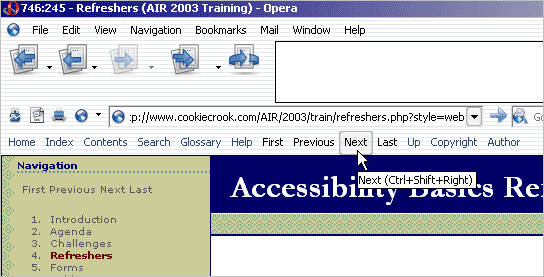
User agents can provide additional features based on metadata contained in the HTML. Opera 7 for Windows, for example, provides navigation buttons for documents properly utilizing <link /> elements (see Opera screen shot).
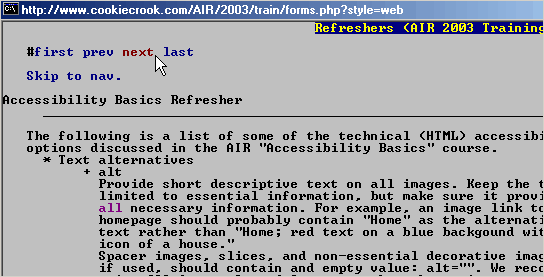
Lynx, a text-only browser, displays the same information at the beginning of a document (see Lynx screen shot).
View the HTML source to see this page’s related link information.
- Expand acronyms and abbreviations
Expand all abbreviations and acronyms the first time they appear on a page, and use the simple abbreviation after that. There are a few ways to expand the items.
- Directly in the text.
This is the most common and most accessible way to expand an abbreviation. For example:
This document is written in using the Extensible Hypertext Markup Language (XHTML). XHTML is a recommended solution for...
- The
acronym element.
Acronym refers to an abbreviation that can be pronounced as it’s own complete word. By specifying the title attribute on an acronym element, most graphical browsers will present a visual tooltip when a user’s mouse is over the element. Also, screen readers can access title attributes. For example:
Most of you are viewing this presentation in a GUI browser. Mosaic was the first GUI browser to...
- The
abbr element.
It should be noted that Internet Explorer for Windows does not support the abbr element, even though it’s usually a better semantic choice for abbreviations than acronym. The abbr should be used on any abbreviation that is not an acronym. This includes abbreviations pronounced as individual letters (RDF, USA, LOL) and shortened words (Hwy, Fri, etc.).
Some abbreviations fit in either category. They can be pronounced as letters (SWF or PNG) or as a word (“Swiff” or “Ping”). We usually choose the acronym element for these because of cross-browser support.
Some people prefer to use acronym in all cases because of cross-browser support. This is an acceptable compromise, but we’ve chosen to use abbr in this lesson in order to follow standards rather than conform to browser bugs.
These elements can be unsupported in older browsers like Netscape 4, but add accessibility and usability features to newer browsers and screen readers.
label
for and id attribute association.
<label for="search">Search</label>
<input type="text" name="q" id="search" />
This method associates a form element with a text label that can be intercepted by a screen reader. Users of many GUI browsers get the added benefit of clickable text. When the text “Search” is clicked, the associated input receives keyboard focus.
Each label element should have a for attribute that directly corresponds to the id attribute of a form element: input, select, or textarea.
Each id attribute must be unique and must start with an alphabetical character or underscore (id must not start with a numeric character). The id attribute should not be confused with the name attribute. name is the variable name sent to the server on submission of a form and does not need to be unique. id is used for client-side identification only and is not sent to the server.
- Wrapping element in label (doesn’t work completely as expected).
<label>
Search
<input type="text" name="q" />
</label>
This method is technically correct and provides a larger clickable area to sighted users, but doesn’t work in many user-agents, so it’s not a recommended solution.
- Combining both methods.
<label for="search">
Search
<input type="text" name="q" id="search" />
</label>
This method is acceptable and achieves the benefits of both.
Tip: You can use duplicate labels for the same form element. You may wish to put one in the form next to the field and use another in an error list returned from server-side validation. See the example listed later in this page. Update (October 2, 2004): Duplicate labels are problematic because of different implementations by Assistive Technology. Don’t use this method.
fieldset and legend
Multiple related form elements can be grouped with the fieldset and legend elements.
<fieldset>
<legend>Gender</legend>
<label for="m">Male</label>
<input type="radio" name="g" value="m" id="m" />
<label for="f">Female</label>
<input type="radio" name="g" value="f" id="f" />
</fieldset>
optgroup
Multiple related select list option elements can be grouped with the optgroup element.
<label for="foods">Favorite foods</label>
<select name="f" id="foods">
<optgroup label="Fruits">
<option value="app">Apple</option>
<option value="ora">Orange</option>
<option value="pea">Pear</option>
</optgroup>
<optgroup label="Vegetables">
<option value="bro">Broccoli</option>
<option value="car">Carrots</option>
<option value="asp">Asparagus</option>
</optgroup>
</select>
Note: optgroup does not even work in Internet Explorer version 5, but it degrades gracefully.
title
Occasionally, you may run across a form element that doesn’t fit well with a label, or needs some additional information displayed. In these cases, you can use the title attribute to supplement information about any element.
There is more info on title attributes in AIR’s Accessibility 101 course.
See an example of label, fieldset, and optgroup in use.
Note: The following applies to data tables, not layout tables. Data is the only semantic use for tables, but if you must use them for layout, the following may not apply.
summary.
The summary attribute of the table tag should provide a brief description of the data represented in the table.
caption.
The caption element should be a short title for the table. Use this instead of an heading. Keep in mind that style can be controlled with CSS, so don’t worry about how an element looks, only what it means. More on semantics, later.
scope.
Most table header elements (th) should contain the scope attribute with values col for columns and row for rows.
headers and id.
Complex tables may require the more specific details than the scope attribute can provide. In these cases, use the headers attribute on td elements and corresponding id attribute on the th elements.
View an example complex table using headers and id. (Example from Jim Thatcher’s 508 Web Tutorial page 9.)
Keep in mind that most tables needn’t be this complex. If you find yourself in a position to hand-code an enormous amount of headers attributes, consider re-thinking your data structure. With a little bit of skilled information architecture, you may be able to avoid this amount of complexity.
thead, tbody, and tfoot.
These HTML elements are used to split a data table’s structure into logical divisions: head, body, and foot. Each element is a direct child of the table element and should contain one or more table rows (tr). There are a few practical benefits:
Printing a long table that spans multiple pages will automatically print the header and footer in the correct places. This works in any CSS2-compliant browser and Internet Explorer (IE), though IE for Windows requires a small bit of added CSS in order to work properly.
The elements provide another logical, semantic, selector for greater CSS control. For example, you can now distinguish between th elements in the thead or in the tbody without using a class or id.
The HTML specification for thead, tbody, and tfoot states that tfoot should precede the body of the table.
<table summary="Feature comparison of Products A and B with price.">
<caption>Product comparison</caption>
<thead>
<tr>
<th scope="col">Feature</th>
<th scope="col">Product A</th>
<th scope="col">Product B</th>
</tr>
</thead>
<tfoot>
<tr>
<th scope="row">Price</th>
<td>$22.95</td>
<td>$28.00</td>
</tr>
</tfoot>
<tbody>
<tr>
<th scope="row">Feature 1</th>
<td>Yes</td>
<td>No</td>
</tr>
<tr>
<th scope="row">Feature 2</th>
<td>Yes</td>
<td>No</td>
</tr>
<tr>
<th scope="row">Feature 3</th>
<td>Yes</td>
<td>Yes</td>
</tr>
<tr>
<th scope="row">Feature 4</th>
<td>No</td>
<td>Yes</td>
</tr>
</tbody>
</table>
This has the benefit of allowing the footer information to load before the data in an exceptionally large data table, but unfortunately it is not backwards compatible. Browsers that don’t support tbody (such as Netscape 4) will place the tfoot before the tbody information. With the example shown, this is not a significant problem. You’ll have to weigh your compatibility requirements and examine your data to decide where to place the tfoot. The following example is an acceptable compromise:
<table summary="Feature comparison of Products A and B with price.">
<caption>Product comparison</caption>
<thead>
<tr>
<th scope="col">Feature</th>
<th scope="col">Product A</th>
<th scope="col">Product B</th>
</tr>
</thead>
<tbody>
<tr>
<th scope="row">Feature 1</th>
<td>Yes</td>
<td>No</td>
</tr>
<tr>
<th scope="row">Feature 2</th>
<td>Yes</td>
<td>No</td>
</tr>
<tr>
<th scope="row">Feature 3</th>
<td>Yes</td>
<td>Yes</td>
</tr>
<tr>
<th scope="row">Feature 4</th>
<td>No</td>
<td>Yes</td>
</tr>
</tbody>
</table>
<tfoot>
<tr>
<th scope="row">Price</th>
<td>$22.95</td>
<td>$28.00</td>
</tr>
</tfoot>
For more on data tables, view a list of accessible table resources, compiled by Matthias Gutfeldt, a member of the Web Standards Project.
- Web Content Accessibility Guidelines (WCAG)
WCAG is the recommendation organized by the World Wide Web Consortium (W3C) and its Web Accessibility Initiative (WAI) project. It was written by an international panel of accessibility experts and is comprised of three priority levels.
- Priority Level 1 (A): must.
A Web content developer must satisfy this checkpoint. Otherwise, one or more groups will find it impossible to access information in the document. Satisfying this checkpoint is a basic requirement for some groups to be able to use Web documents.
- Priority Level 2 (AA): should.
A Web content developer should satisfy this checkpoint. Otherwise, one or more groups will find it difficult to access information in the document. Satisfying this checkpoint will remove significant barriers to accessing Web documents.
- Priority Level 3 (AAA): may.
A Web content developer may address this checkpoint. Otherwise, one or more groups will find it somewhat difficult to access information in the document. Satisfying this checkpoint will improve access to Web documents.
View this Checklist for WCAG 1.0 for an easy way to gauge accessibility compliance on your next web project.
- Section 508
Section 508 of the Workforce Rehabilitation Act is a United States law outlining minimum levels of accessibility for electronic resources. All government agencies and contractors dealing with these agencies are required to be Section 508 compliant. Unfortunately, this is still largely unenforced.
Section 508 is largely similar to WCAG Priority Level 1. View Jim Thatcher’s side-by-side comparison of Section 508 and WCAG Priority 1 for an in-depth comparison of the differences between the two.
- Laws in other countries.
Accessibility laws in other countries vary greatly. Some countries enforce no web accessibility standards, and some countries’ standards are more strict than Section 508. See the Disability Rights Commission and the Royal National Institute of the Blind for information regarding laws in the UK.
Validation means verifying that the site you produce meets and complies with published guidelines to ensure a quality experience for all users. Some validation (like HTML and CSS validation) can be done automatically, however full accessibility validation requires a large amount of human interaction.
- Markup validation
- Choose a DTD: XHTML 1 Strict or HTML 4 Strict
- Currently no practical difference (for accessibility).
With the current set of assistive technology devices, there is no practical difference between HTML 4 and XHTML 1. You can make one just as accessible as the other.
Some SGML enthusiasts complain the the XHTML syntax can cause problems in SGML-capable browsers. Though the problems are fairly insignificant, they do not arise in HTML.
- XHTML has more theoretical benefits (future-proof your site).
Because XHTML is a form of XML, the theoretical benefits are vast. Any XML parser can read and translate XHTML into other forms to reuse the data. XHTML also alleviates any possible abiguities in rendering because of ommitted closing tags.
The current generation of web browsers contain XML parsers capable of transforming documents with scripting or with an add-on extension. Future versions may include more parsing utilities.
- Strict DTD versus Transitional DTD.
Use of a strict DTD can enforce more separation of content from style than a transtitional DTD. Also, although it doesn’t require it, a strict DTD also encourages the use of semantic markup. Almost any validating document can be made accessible, but XHTML 1 Strict or HTML 4 Strict are the recommended choices.
- Benefits of markup validation
- Catch easy errors
Just like it says, the W3C markup validator will catch markup errors, tell you where they are, and tell you why they are incorrect. The new beta version of the markup validator gives slightly better instructions and even has “fussy parsing” mode, which will flag non-errors that are known to cause problems. Is that a Freudian slip waiting to happen?
- Consistency across all user-agentss
A browser or other UA cannot be expected to consistently render your page unless your code complies to the same rules it understands. All browsers follow the same specifications, so by following the standards instead of the browser bugs, you can ensure consistent rendering on all standards-compliant browsers: past, present, and future.
Base your design on standards, and then make small adjustments where needed. If you base it on a buggy implementation, you have trouble getting it to work correctly in compliant browsers.
- More reading.
Why say more when these authors have already done a fantastic job?
- CSS validation
- Accessibility validation
- WCAG Checklist
If you know all the code on your web site you can go through this list and verify accessibility. The following tools can help speed the process, but they are know substitute for human verification (user checks).
- Tools
There are validation tools that will help you recognize certain accessibility problems, however, these are only a supplement and should not be used without full user checks.
- Bobby
The first of its kind and a fantastic tool for catching many common accessibility errors, Bobby received much praise and now receives more criticism than it deserves. The criticism is mainly due to the fact that Bobby is often misused. People see the “Bobby Approved” graphic and assume they are finished. Too many ignorant developers out there claim a completely accessible site, without performing one user check.
- Cynthia Says
Another web-based validation tool that’s slightly different (better?) than Bobby. You be the judge. Note: Cynthia is still misused just like Bobby. Many people see no error and assume full validation.
- WaiZilla
An open-source accessibility validation tool started by Tim Roberts that integrates with the Mozilla web browser. Read Ian Lloyd’s review of WaiZilla for more information and a few links to other accessibility testing tools.
- Lift
Lift was created by UsableNet and is available as a stand-alone version or as plugin utilities for Macromedia Dreamwever and Microsoft Frontpage.
- A-Prompt Project
A-Prompt is developed and made available by the Adaptive Technology Resource Centre of the University of Toronto and is available in English and French.
- User checks are essential!
In case we didn’t mention it before, user checks are essential! Don’t just use the automatic tools for accessibility testing. User checks are essential!
- Shortcomings of Validation
- Automated validation can’t do everything.
That’s right. There’s no magic pill for web development.
- Valid does not mean accessible.
Valid HTML and CSS is important, but it does not mean your site is accessible. Full accessibility validation does mean accessible, but that level of validation cannot be provided by automated tools. (If you noticed we keep repeating this, you’re paying attention. Thanks.)
- Valid does not mean semantic.
A site can use completely valid XHTML 1.1 Strict markup and still be semantic trash. More information on semantics is contained on the next page.
- Semantics:
- The study of meanings.
- The historical and psychological study and the classification of changes in the signification of words or forms viewed as factors in linguistic development.
- A branch of semiotic dealing with the relations between signs and what they refer to and including theories of denotation, extension, naming, and truth.
Meaningless HTML can validate; make sure your site is semantically pure. Think about what your content means, not just how it is going to look.
- Selectors
A full explanation of CSS selectors is outside the scope of this course, but we will briefly mention a few common selectors. Admittedly, these are incomplete explanations.
tagName
Any markup element can be selected for styling by its tagName. This is the simplest of selectors and should be used whenever possible for general styles that apply to all elements of the same type.
h1 { /* h1 heading element */ }
p em { /* selects an em element contained in a paragraph */ }
className
A className selector begins with a period (.) and is more specific than a tagName selector. These should be used to differentiate between multiple types of data that use the same tagName.
.nav { /* any element with a class of nav */ }
div.header { /* selects a div element with a class of header */ }
id
An id selector begins with a hash mark (#) and is even more specific than a className selector. Because the id of a markup element must be unique, these should refer to singular elements that need to be noted differently. Use id sparingly and try to control your document with more general styles.
#links { /* any element with an id of links */ }
#foot address.corp { /* selects an address element with a class of corp that is contained in an element with an id of foot */ }
pseudo-class
A pseudo-class selector begins with a colon (:) and usually refers to an element in a certain state.
a:visited { /* hyperlink that has previously been visited by the user’s browser */ }
:hover { /* (should) select any element while the mouse cursor hovers over it */ }
For more plain English (and Spanish) explanations of selectors, including complex CSS2 and CSS3 selectors, examine Selectoracle, developed by the Opal Group.
As you may have noticed from the examples, you can combine these selectors to create a new selector with greater specificity.
- Specificity
When two or more CSS rules define the same property for a given element, the style preference is given to the rule that is more specific. Again, this is too large a subject to continue, and there are other resources that explain the concept better than we could.
The mark of a good technical author is the ability to take a complex subject and explain it in a simple way. Eric Meyer demonstrates his skill with a fantastic explanation of specificity in his book, Cascading Style Sheets 2.0 Programmer’s Reference (PDF). Read page 9 and 10: Specificity Calculation.
More resources on the subject are available in HTML format.
One notable exception to the rules of specificity is the !important construct. !important acts as a trump to override a rule that may be more specific.
.content { font-size:1.2em !important; }
For now, we recommend never using using !important in your author style sheets. You’ll find out why later, when we discuss user style sheets.
@import versus <link />
Some older browsers, specifically Netscape 4, do not handle CSS-P well, sometimes to the point of fatal application crashes. For this reason it is often necessary to hide your complex styles sheets from these browsers. The following is a method of importing a stylesheet so that version 4 browsers ignore it.
<style type="text/css">
@import "inc/compliantstyles.css";
</style>
If you have written you page in semantic HTML, it will still be very readable and accessible in older browsers; it just won’t be styled. This way, you will still be “supporting” these browsers even though they are not “targeted” to receive the full design and layout.
For more information on this subject and justification for web standards, read From Web Hacks to Web Standards: A Designer’s Journey by Jeffrey Zeldman, or read Mr. Zeldman’s latest book, Designing With Web Standards.
Alternately, you can use a combination of @import and <link /> to serve selective styles to Netscape and also to standards-compliant browsers.
For a great CSS reference tool, install the Netscape DevEdge sidebar for Mozilla or other Gecko-based browsers.
...important to note that while CSS allows good document structure, it does not enforce good structure.
— Mark Pilgrim
- Ease of updates.
Most people familiar with style sheets consider this the greatest benefit. For example, if you have a ten-thousand-page web site and you need to change the colors, it’s a simple change to one CSS file. With full CSS-P and semantic markup, you can completely redesign a site with one style sheet change.
- Separation of content from style.
- Alternate Visual Styles
- Different graphic designs
Dave Shea’s CSS Zen Garden is the best example of complete redesigns using only style sheets. Design submissions from people around the world demonstrate how the same bit of data can be drastically repositioned and styled.
- More accessible designs
Using the same technique to supply a different graphic design, you could also provide a more accessible design for your site. For example, larger fonts and high-contrast colors may help low-vision users.
- Different views
This presentation contains two main views: web and presentation. The presentation view is set up like a PowerPoint presentation and only contains the main points of information. The web page view has a different layout and the full notes (including presenter’s notes).
This technique could be also be used on a company intranet to display only relevant information to individual viewers. For example, a large table of project management data could filter which information was relevant to each department. There could be a view for developers, designers, managers, client representatives, etc. Each of the departments would receive the same file, but need only view the information relative to their specific job.
- Print CSS
With full use of CSS-P and semantic markup, there is no longer a need for separate “printer-friendly” pages. In all recent web browsers, a user can print as normal and automatically receive a stylesheet set up specifically for printing. For example, information not essential to the content (like a navigation menu) can be hidden and the page could be printed with a different font. This presentation’s content prints with a serif font for easier reading, it prints without the navigation menu, and even displays URLs of links in CSS2-compliant browsers.
For more information on print style sheets, see Going to Print, an ALA article by Eric Meyer.
- Aural styles
To the best of my knowledge, only one browser, Emacspeak for Linux, currently supports the W3C’s ACSS Specification. Aural styles do for screen readers and speech browsers what screen styles do for GUI browsers. Once they are well-supported, an author will be able control various aspects of the screen reader’s speech, such as voice-family, speech-rate, and volume.
For more information on aural styles, view the ACSS Specification.
- Lightweight, semantic, code
In the previously noted quote, Mark Pilgrim says that CSS allows good document structure.
The benefit of this is that you can strip down your markup to the bare metadata essentials. Therefore, the file size is much smaller and the files download a lot faster.
This page (in web page view) is about 9k. If you include all cacheable items like the style sheets and images, it’s still under 20k. An equivalent page in presentational HTML could easily be 60k or more. In fact, I’ve seen web sites that contained over 60k of whitespace and comments. Yikes! Less bandwidth equals happier readers. On an enterprise scale, less bandwidth equals more money.
Read Eric Meyer’s Interview With Mike Davidson of ESPN. Although I don’t agree with Mike’s views on validation, the point is that ESPN saves 2 terabytes of bandwidth per day because of their CSS redesign. If you’re not sure how much that is, just know that it’s a huge amount.
- Ability to override styles (user styles)
User Style Sheets will be discussed in more detail on the following page.
A user style sheet is saved on a web user’s computer and maintains their display preferences for browsing the internet. A user style sheet can override an author style sheet by use of the !important construct.
Benefits of User Style Sheets
All of these examples are assuming the author style sheet has not been set up in an inaccessible manner — that is, without the !important construct on key selectors like these and with all font-sizes relative to the body size. If an author has defined a style rule as !important, it cannot be overridden by a user style sheet (without a more specific rule also utilizing !important). It has been brought to my attention that the previous statement does not apply to modern standards-compliant browsers. I had previously written it because of a browser bug that I can no longer verify. I think it may have been a version of Internet Explorer for Windows, but all tests now appear to work correctly.
- Style preferences for accessibility
- Ad-blocking by source or reference
- Showing hidden attribute information
- Expanding links and abbreviations (see print preview of this page)
/* html>body hides selectors from WinIE */
/* because it’s treatment of :after is buggy */
html>body a:link:after, html>body a:visited:after {
content:" (" attr(href) ")";
font-size:60%;
text-decoration:none;
}
html>body acronym:after, html>body abbr:after {
content:" (" attr(title) ")";
text-decoration:none;
font-size:60%;
}
- Displaying
accesskey information.
*[accesskey]:after {
content: attr(accesskey) !important;
font-family:"courier new",monospace;
border: outset 1px #fff;
color:#000 !important;
background-color:#eee !important;
}
- Doesn’t work in Internet Explorer
- Use scalable rather than absolute units.
- Use
em, percent(%), or keywords.
Try not to use pixels (px) or points (pt) for font and block sizes because the user cannot resize them. Note: Point should never be used for screen sizes anyway, though using it for print style sheets is acceptable.
- Differences between Em and Percent
For current implementations of font-size there is not much difference between em and percent. For block-level sizes however, there is a large difference. View the scalable width demo to see these differences in action.
- Practical Decisions
- Level of layout support
- No CSS, presentational markup only (Not recommended)
- Hard to maintain, deprecated
- Easily turns into tag-soup
- Partial CSS (acceptable compromise)
- One main layout table with no style, color, etc.
- All fonts, colors, margins, etc. controlled with CSS
- Works in Netscape 4
- Full CSS (recommended solution)
- Including CSS-P for layout
- Doesn’t work (consistently) in Netscape 4
- Acceptable degradation: conform to browser bugs or let them slide
- Tips
- Don’t mix HTML colors with CSS colors
If you define your background-color with an HTML attribute, but define your foreground-color with CSS, then when style sheets are disabled, you may have conflicting colors that would make for unreadable text. View this HTML and CSS color test for an example.
- Base
class and id names on structure, not style.
This is a “best practices” technique, and doesn’t affect accessibility, but consider the following email excerpt from the CSS Discuss list:
I fail to see how referring to HR by a ‘style’ name is any worse than referring to them by ‘structure’ names, at least in this case. Perhaps I simply don’t understand what is going on here, but the use of ‘thin’ and ‘thick’ make much more sense to me now and probably also in the future. I can just imagine wanting to use a ‘headingRule’ at some point, but deciding that, since this is not a ‘Heading’ I should not. I see and use HR more as a visual aid to differentiate sections, topics, page breaks, and ‘Return to Top of Page’ points than for showing outlines or page structure.
Right. I absolutely understand. I know I was being really picky... However, since I got your attention, I’ll throw out a few more reasons why I suggested the other classes.
You are definitely right to not use a ‘headingRule’ if it is not a heading. That was just my example class since I didn’t know how you were planning to use the HRs. Since you’ve given some more info, I’ll extend the example to include some small but practical benefits.
You mentioned sections, topics, and page breaks. Let’s use those classes for the rules: hr.section, hr.topic, and hr.pageBreak. Now, I’m just guessing, but let’s assume you want ‘topic’ and ‘pageBreak’ to be thick lines and ‘section’ to be a thin line. Instead of ‘hr.thick’ in your CSS, you have ‘hr.topic, hr.pageBreak’, right? They both look the same in a browser, but now you have the added benefit of semantically differentiating between the two different types of HRs. Imagine that you later added a print style sheet. You have a class for page breaks so you can add the following rule to the printer stylesheet.
hr.pageBreak {
page-break-after:always;
}
Now you have two different HRs with the same visual style, but a different functional style because of a slightly more semantic class name. Arguably, however you could also have named your classes ‘thick’, ‘thin’, and ‘pageBreak’ with the same effect. The pickiness there comes from a scalability perspective. In your case, I doubt it would make a difference but I'll give the example anyway.
Pretend you are a developer on a large-scale site that utilizes CSS. You set up a class for error messages and named it ‘redtext’. Sometime later, you need to make an style change and decide that the red text should now
be blue. Because there are several hundred thousand pages, a re-edit of all the markup is unacceptable for redesigns. You need to be able to change the style of the whole site by modifying one CSS file (or at least that’s what you told your boss when you sold him on the idea of web standards)...
Now you are stuck with a class for blue text that is called ‘red text’. While this is not an error, and probably won’t cause you any confusion, you can already see the irony. Now the other developers come in and have to use/edit your code. It would get to be even more confusing to them when there are 20 or 30 of these rules that have implied style in the classname that doesn’t necessarily relate to how the class is styled. The problem could be resolved by using a class name of ‘error’ from the beginning.
- Image replacement techniques
- Farhner Image Replacement (FIR): not accessible!
This method hides the text from some screen readers like JAWS. Home Page Reader ignores screen styles and has no problem with it.
- Leahy/Landridge Image Replacement (LIR): mostly accessible.
This method fails when images are turned off or unavailable. Combining this method with the title title attribute is sometimes enough...
- Pixy’s No-Preload Rollovers: Accessible, but doesn’t allow for scalable text sizes.
- Lists
- Layout
- CSS-Discuss Wiki Layouts
- Kevin Tatroe’s Layout-o-matic (inspired by List-o-matic)
A free online tool that automatically generates cross-browser CSS layouts, including two- and three-column layouts with header and footer. Note: The tool violates several accessibility principles (auto-submisions on forms, for example) but it’s a useful tool, nonetheless. Referral (and first sentence) from Zeldman.
- Firda Beka’s Firdamatic
Another referral from Zeldman.
- Eric Costello’s Glish
- Owen Briggs’ CSS tutorials and Box Lesson
- Experimental (Potentially useful, but not necessarily accessible.)
- Variables and Data Types
- Boolean (true or false)
- Numbers
- Integer
- Floating Point (decimals)
- Strings
- Complex Data Types
- Functions
Reuse the same bit of code in multiple places throughout your page.
- Return Values
We’ll use return values a lot with “accessible” JavaScript in order to cancel the default action of a HTML behavior.
- External Scripts
Reuse the same function library on multiple pages throughout your site.
Accessible JavaScript Guidelines
(Nathan) Shedroff pointed to the continuing lack of integration between design skills and programming knowledge as a reason why most sites were still functioning primarily as brochures.
— David Womack, AIGA Director of New Media
- Enhance usability, but never rely on JavaScript!
- Usability:
- ease/intuitiveness of use.
- Accessibility:
- anyone can access the site.
Note: These definitions are far from complete, but that’s how we’ll be using the terms for the purposes of this section.
Use Javascript to enhance the usability features for the majority of users, without negatively affecting the accessibility for the minority of users. You can almost always fall back on a plain HTML or server-side solution for the benefit JavaScript provides.
- Offer a non-JavaScript alternative.
Contrary to popular belief, this does not mean use noscript elements on everthing. Most of the time, you can get away without using noscript at all. If you need to use it, consider it a last resort.
- Avoid “cute” tricks.
Avoid scrolling text or changing text because changes in the page content often make screen readers start over. If your content is constantly changing, it will be inaccessible to a blind or low-vision user.
Avoid flashing or constantly moving graphics because they can be distracting to users with attention deficits. Even worse, large flashing areas can cause some people to go into epileptic seizures.
- Don’t hijack the user’s browser
- Never use unrequested popups!
- Don’t resize or move browser windows.
- If you use popup windows, alert the user first.
- Don’t disable the resize or scrollbar features of popups.
- Consider needs for a variety of disabilities
Accessible event handlers
| Mouse event |
Equivalent keyboard event |
onmouseover |
onfocus (1) |
onmouseout |
onblur (1) |
onmousedown |
onkeydown (2) |
onmouseup |
onkeyup (2) |
onclick |
onkeypress (3) |
Never use the onchange event for automatic form submissions!
Only use onchange rarely and don’t alert users of format errors until time for submission. For example, you may want to use it for slight formatting changes of input data. If a user has typed in (555)555-1212 for a phone number format instead of the requested format, you could change it to 555-555-1212 safely without alerting the user. However, since this type of data manipulation could easily be done at the time of submission or on the server-side, it may still be a good idea not to use onchange.
Keyboard events
onfocus and onblur
The onmouseover and onmouseout events are most commonly used with image rollovers. While adding the onfocus and onblur events for rollovers is not necessary for screen reader accessibility, it can add usability benefits for sighted users accessing your site with a keyboard. For example, although a mobility-impaired user may not need to see a rollover, he could still benefit from the visual feedback of the effect.
You may also wish to consider using CSS for rollover effects. The CSS image replacement techniques are not fully accessible (and probably won’t be until CSS3 generated content is widely supported), but for text effects it is more than adequate.
a:link { /* normal state */ }
a:visited { /* visited state */ }
a:hover, a:active, a:focus { /* rollover state */ }
The :active and :focus psuedo-classes mimic the :hover state for keyboard events. Ideally, :active would mimic an onmousedown or onkeydown event, but Internet Explorer incorrectly treats this as :focus so we double-up the psuedo-classes to get a consistent effect across multiple browsers.
See an example of CSS rollovers versus JavaScript rollovers.
Because newer browsers (like Mozilla) can implement :hover on arbitrary elements (not just links), you may want to double-up your pseudo-classes. Combining :hover with :link and :visited can ensure the special effects won’t appear on non-link anchors.
a:link { /* normal state */ }
a:visited { /* visited state */ }
a:link:hover, a:visited:hover, a:active, a:focus { /* rollover state */ }
onkeydown and onkeyup
In a few DHTML cases, these events may need to be used instead of onkeypress. For example, the arrow keys do not consistently activate the the onkeypress event, but they usually do activate the onkeydown and onkeyup events.
However knowing that many users do not have arrow keys (laptops for example), consider rethinking your need for these keys if the functionality provides a essential information. Also consider how difficult it may be to use this type of interface with a screen reader.
onkeypress
Most browsers activate the onclick event when a user presses the Enter key, however certain browsers do not. To ensure full support, you may wish to use the onkeypress event.
You could use this example HTML code:
<input
type="button"
onclick="foo();"
onkeypress="verifyKey(this,event);"
/>
With this JavaScript function:
// With onkeypress event, this verifies “Enter” key
function verifyKey(oElement,oEvent){
if(oEvent.keyCode==13 && oElement.onclick){
oElement.onclick();
}
}
Note: The verify key function is usually not necessary, but it was written to account for an bug in some older versions of Mozilla. The bug has been fixed in the latest releases, but it previously activated the onkeypress event when a user hit the Tab key, making it impossible to tab past the link without activating the event.
Accessible JavaScript Examples
- Image Rollovers
Use the event handlers on an anchor element rather than on the image element. An image cannot achieve keyboard focus so it would never be able to use the keyboard events.
Use the keyboard equivalent event handlers for the standard mouse event handlers.
onmouseover="rollon(this);"
onmouseout="rolloff(this);"
onfocus="this.onmouseover();"
onblur="this.onmouseout();"
It’s actually better to assign event handlers dynamically (version 5+ browser), but if you need to support older browsers, use the hardcoded event handlers.
View the example image rollovers. Note: There are numerous ways to use JavaScript for rollovers and preloading images. We are not claiming this example is the only accessible way, we’re just showing an example of accessibility features in use.
- Popup Window
- Never use unrequested popups!
- Warn user on requested popups.
- Before link
- Inside link text
- In
title attribute link of link
- Use real
href value.
Dont’t use href="#" or javascript: psuedo-protocol.
<!-- These methods fail when JavaScript is disabled -->
href="#" onclick="window.open(...);"
href="javascript:window.open(...);"
- Verify new window.
Don’t cancel default behavior of link (return false;) until you have verified the existence of the new window. Otherwise, browsers with internal popup-blocking enabled may not be able to get to the content.
<!-- This method fails with some popup blocking settings -->
href="foo.htm" onclick="window.open(...);return false;"
Instead use a function with a return value that returns false if the window has opened and true if it hasn’t.
<!-- View example JS file for function details -->
href="foo.htm" onclick="return pop(this);"
View the completed accessible popup window example.
- Form Validation
Although I have no finished validation example, keep these tips in mind and you should do well.
- Always backup with server-side validation!
If your data must be valid, you should always back up the JavaScript validation with server-side validation. JavaScript can be disabled or unavailable.
- Wait until submission to validate.
Don’t distract a user by validating each field as they go through the form. Wait for the user to finish and submit the form, then validate and present feedback if necessary.
- Never auto-submit!
Never ever auto-submit a form. The most common abuse of this technique is submission with a drop-down select list. Though this may present a usable solution for a person with a mouse, it is a usability and accessibility nightmare for keyboard users.
My motivation is the pursuit of perfection. Although I am aware that perfection is impossible, the strive towards perfection is not.
— Gregory Evans
- Test using Assistive Technology (AT).
There is no substitute for testing with Assistive Technology like screen readers. The most popular screen readers are JAWS and Window Eyes.
- Test using validation tools.
Test using the validation tools mentioned previously, but watch out for the shortcomings of validation.
- Testing using numerous browsers and other devices.
Web sites should be accessible to everyone, including people using older browsers, handheld computers, and other devices.
- Test with different combinations of settings.
- CSS
Make sure the data is readable and presentable with styles disabled.
- JavaScript
Test with JavaScript completely or partially disabled. Check different versions of popup-blocking browsers and other tools.
- Cookies
If you utilize cookies to maintain session data, offer an alternative solution.
- Images
Test your site with images disabled in your browser. Does it still make sense? You may also want to test with a text-only browser like Lynx.
- Color settings
Grayscale or lower bit-depth, contrast, brightness, etc.
- Windows IE’s unique accessibility settings
Internet Explorer for Windows, the most popular web browser, has a truly bizarre accessibility setting. If you select Tools > Internet Options > General tab > Accessibility button, you will see three options: ignore colors, ignore font styles, and ignore font sizes. These allow a user to ignore parts (but not) all of a web page’s CSS.
This feature was designed by developers with good intentions but it was not as well-designed as it should have been. Ignoring colors, but not positioning will negatively affect most dynamically positioned layers, such as drop-down navigation menus. A disabled person would be better off sticking with a well-crafted user style sheet.
Despite this pitfall of design, Internet Explorer is the de facto standard web browser, and you should test with these settings anyway.
- Don’t override User CSS settings
- Leave
font-size relative to the body element.
If you set all sub-element’s font sizes in em or percentage units, the user can adjust the entire document’s font-size with one user style on the body element.
Don’t Rarely use !important in author styles.
User styles rely on being able to override author styles. If you use !important in your author styles, you make it more difficult for the user to override them. It has been brought to my attention that the previous statement does not apply to modern standards-compliant browsers. I had previously written it because of a browser bug that I can no longer verify. I think it may have been a version of Internet Explorer for Windows, but all tests now appear to work correctly.
As of this writing, Flash cannot be made as accessible as an HTML document.
This information is provided because Flash developers will continue to use Flash whether it is accessible or not. Until Flash can be made as accessible as HTML, please use all the accessiblity techniques available in the most current version of Flash. It’s not there yet, but it keeps getting better.
I’ve learned almost everything I know about Flash accessibility from Bob Regan, head of the Macromedia Accessibility team. Unfortunately, he no longer updates his blog, but you can still find the achives on Bob Regan’s Flash Accessibility web log.
- Text Alternatives

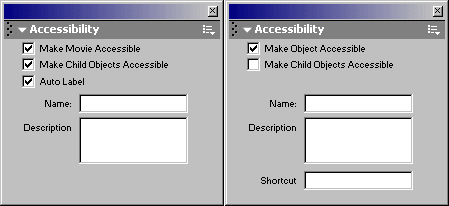
The Accessibility panel will be your main method of making Flash movies accessible to screen reader software. The graphic pictured above shows two contextual views of the Accessibility panel. The left side shows accessibility properties of the main movie (when the main stage is selected) and the right side shows the accessibility options of a typical item on the stage. We’ll discuss the checkboxes and “Shortcut” field later. For now, let’s consider the “Name” and “Description” fields.
Name is the equivalent of an alt or title attribute in HTML. Use the Name field to provide alternative text for any images and graphics that do not already contain appropriate text. Any text typed directly into Flash will automatically be available for the screen reader.
Description is the equivalent of the longdesc attribute in HTML. However, current screen reader implementations read both the Name and Description properties back-to-back, so consider that when presenting charts or graphs that require extended descriptive text.
View Bob Regan’s articles Labeling Controls Part 1 and Labeling Controls Part 2 to understand the nuances of the Flash auto-labeling feature. Also read Describing an Entire Flash Movie to understand practical ways to label the main movie.
ActionScript programmers may wish to view the Accessible Product Rollover, Part 2 entry for an example of how to control Flash accessibility properties using ActionScript.
- Create a logical tab order with the
tabIndex property
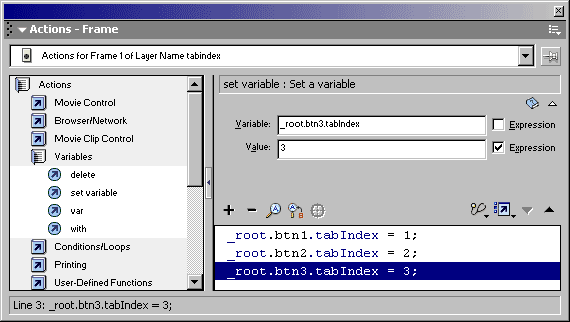
The ActionScript property tabIndex is the equivalent of the tabindex attribute in HTML. Because Flash has no source code order like HTML, you’ll need to use this property in Flash quite a bit more than you will with HTML.
As in HTML documents, you’ll need to create a logical tab order so that people accessing your Flash movie with a keyboard will be presented with a usable interface. This group of people includes vision-impaired, mobility-impaired, and non-disabled users who have a preference for the keyboard. Pay especially close attention to the tab order when presenting dynamic content or forms for Flash applications.

If necessary to maintain a logical tab order, set any Flash object’s tabIndex property to an integer. View Bob Regan’s discussions of Reading Order in Flash and Flash Reading Order Cases to understand how, when, and why to use tabIndex.
- Shortcut
The contextual Accessibility panel contains a “Shortcut” field that is closely equivalent to an HTML accesskey attribute. However, we highly recommend not using this unless you have a complex web application that requires extensive keyboard control. Shortcuts have all the same drawbacks of accesskey and are much more complex to implement. The method required to implement a keyboard Shortcut is outside the scope of this lesson.
- Regarding child object accessibility

The left side of the graphic above shows the main movie’s accessibility properties. Unless your Flash movie provides no meaningful content, such as decorative banner, you’ll almost always want to leave these three boxes checked: Make Movie Accessible, Make Child Objects Accessible, and Auto Label.
The accessibility properties of objects on the stage will vary with the content. For example, you would want to make a control button accessible, but you would not want to make a decorative graphic accessible. The same principle applies when we use empty alt text for a spacer or decorative image in HTML:
<img src="pretty_swirl.gif" alt="" />
The other main practical problem with accessible child objects is that if the Flash Player detects a change in an accessible object, it will tell the screen reader to start reading from the top again. This is somewhat equivalent in functionality to a HTML page refresh or a link to another HTML document. Bob Regan discusses this more in his blog entry, Requirements for Text Equivalents, but unfortunately the example file has become a victim of link rot and returns a “File not Found” error.
The surest way to avoid problems with accessible child objects is to test using Assistive Technology.
- Pitfalls of transparent hit areas
Bob Regan discusses transparent hit areas and how to fix the accessibility problems associated with them.
- Overcoming focus of Flash object in web pages
fscommand hack (doesn’t work in all browsers)
One way to relinquish a Flash object’s keyboard focus is to use the ActionScript fscommand function. fscommand allows Flash to send a command to a browser’s JavaScript engine, which can then assign keyboard focus to another element in the HTML document. The accessibility issues with this method are that it relies on JavaScript an does not work in many browsers.
Future implementations of the Flash Player may be able to access the HTML DOM directly, without this middle man technique.
- Skip flash object anchor in HTML
Using HTML page anchors, you can skip over a Flash object the same way you would provide a “Skip to main content” link. You may want to leave this “skip object” link visible for keyboard users who do not have vision impairments.
- More in Flash MX 2004?
As of this writing, I haven’t used Flash MX 2004. I do know that it provides certain accessibility updates, but I’m not sure the extent of the updates. One update I can speak for is that the latest Flash Player has fixed the “overcoming focus of Flash object” mentioned previously in this page.
For more information on Flash MX 2004, view Bob Regan’s announcement of Studio MX 2004 and his discussion of components and accessibility.
Using the following tools and techniques, you can provide most multimedia presentations in an accessible format.
- Synchronized Multimedia Integration Language (SMIL)
SMIL, pronounced “smile,” is a W3C web standard method of synchronizing video, main audio tracks, descriptive audio tracks, caption text, and other components of a multimedia presentation. Many media player applications, including the Quicktime Player and Real Player, can understand and use SMIL files. I believe Flash can also use SMIL, but do not know the extent of SMIL support in current versions of the Flash Player.
- MAGpie by NCAM
The Media Access Generator (MAGpie), developed by the National Center for Accessible Media (NCAM) is currently the best tool available for captioning video and is provided for download free-of-charge. MAGpie saves your multimedia presentations as SMIL files, which can then be exported to a variety of formats.
Knowbility offers a multimedia training session for AIR participants which covers basic installation and use of MAGpie.
- Descriptive audio tracks
Videos usually present on-screen information, such as a title or demonstrative action, that is not available in the audio track. Using SMIL, you can offer a descriptive audio track for vision-impaired users. Descriptive audio utilizes pauses in the main audio track to describe onscreen information.
- Video captions
Anytime you present a web video with an audio portion, you can present captions for the hearing-impaired. Captions are on-screen lines of text that display equivalents of audio content such as spoken words or sound effects.
- Transcripts
Spoken audio content can be presented with a plain text transcript for hearing-impaired. Keep in mind that this benefits more people than just those with disabilities. Non-disabled users may prefer to read the transcript instead of listening to the audio track. Also, search engines like Google can index the text transcripts, but not the audio files.
This list will continue to grow/evolve as I have time to update it.
- Links (Accessibility, XHTML, CSS, JavaScript, Flash)
- Tools and software used during presentation
- Recommended Web Browsers
- Bookmarklets/Favelets
- Other Software
- Books